
Unpixelate Image for Ecommerce Product Photos
When sellers search for how to unpixelate image files, the real problem is rarely cosmetic. A product photo looks soft in the editor, then worse after marketplace upload. A supplier image is too small for a PDP. A label becomes unreadable after cropping. A lifestyle crop looks fine on desktop but breaks on mobile zoom.
AI upscaling can help, but it cannot recover every missing detail. For ecommerce, the question is not "Can this image look sharper?" The better question is "Can this image become sharp without changing what the buyer thinks they are buying?"
Quick Answer
You can unpixelate a product image when the source file still contains enough edge, texture, and color information for an enhancer to rebuild clarity. You should not rely on unpixelating when the image has tiny label copy, compressed packaging details, fine jewelry edges, fabric weave, transparent material, or safety-critical markings that are already lost.
For ecommerce product photos, use AI image enhancement for mild blur, compression blocks, soft supplier photos, and small crops. Reshoot or request a better source when the file is too small, the label is unreadable, the product edge is merged into the background, or the recovered image changes material, color, or shape.
Start With the Product Detail That Must Stay True
The safest way to evaluate a pixelated product photo is to name the detail a buyer must trust. That detail changes by category.
| Product type | Detail that must survive | Upscaling risk |
|---|---|---|
| Beauty and supplements | Label text, seal, cap edge, color of liquid or packaging | AI may invent clean label strokes or sharpen the wrong edge |
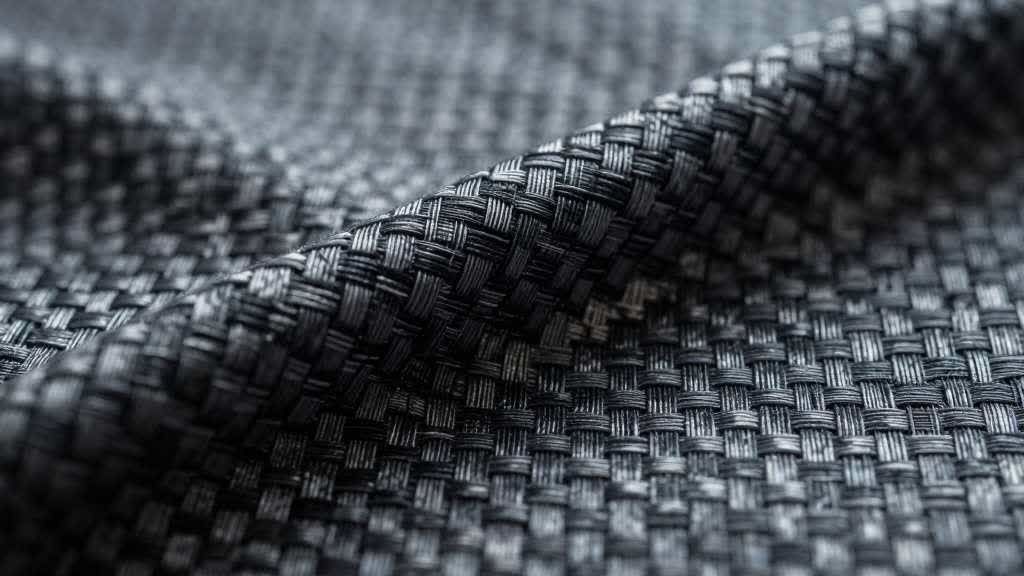
| Apparel | Fabric weave, stitching, fit line, color variation | Texture can become plastic or repeated |
| Electronics | Ports, buttons, seams, LED holes, screen edge | Small hardware can be rounded or simplified |
| Home goods | Wood grain, metal finish, ceramic texture, scale | Surface detail can become too smooth |
| Jewelry | Prongs, stones, engraving, reflective edge | Upscaling can create false facets |
| Food and beverage | Package copy, ingredients panel, freshness cues | Text and texture may become misleading |
A generic upscaler result can look impressive and still be wrong for a listing. A sharper image is useful only if it preserves the product facts.
Diagnose the Pixelation Before Editing
Pixelation usually has one of five causes:
- The original file is too small for the crop.
- The product was photographed out of focus.
- The file was compressed several times by suppliers, marketplaces, chat apps, or CMS exports.
- The image was enlarged after background removal.
- The final upload was cropped or resized beyond the useful source area.
Each cause needs a different fix. If the file is too small but still clean, upscaling can help. If the product was out of focus, enhancement may improve edges but will not restore true label detail. If the photo was compressed repeatedly, remove compression artifacts before adding sharpening. If the image broke after background removal, start again from the original product cutout.
For the broader repair workflow, compare this with how to fix pixelated product photos. That guide covers resolution, export, and marketplace checks. This article focuses on the narrower "unpixelate image" decision: when recovery is safe enough for ecommerce use.
Recovery Limits by SKU Type
Beauty Bottles and Supplement Packaging
Beauty and supplement photos are risky because the packaging carries many product facts. A mild upscale can clean the bottle edge, cap, and white background. It should not be used to fake unreadable label copy.
Use enhancement when:
- the bottle edge is soft but the label is readable
- the cap, pump, or lid shape is intact
- the source image has enough pixels for the main gallery
- the final use is a secondary image or ad crop
Treat enhancement as an internal review step when:
- ingredients, volume, warning marks, or variant names are unreadable
- the label has already turned into blocks
- the color of the product line is important
- the product is regulated or compliance-sensitive
For these SKUs, use AI enhancement to prepare a cleaner review file, then compare it against the real packaging before upload.
Label-Free Products and Simple Shapes
Some products are safer to recover because buyers rely less on tiny printed details. A plain ceramic bowl, simple storage bin, silicone spatula, candle holder, cable tray, or unbranded bottle can often survive enhancement if the outline, color, and material stay believable.
Even then, review the silhouette. A recovered storage bin with a warped corner or a bowl with an uneven rim may look fine in a thumbnail and wrong on a PDP.
Use enhancement more confidently when:
- the product has a simple outline
- there is no small label copy
- the material is matte or lightly textured
- the final image only needs moderate zoom
- the product will not be judged by tiny construction details
Apparel and Fabric Products
Apparel can tolerate more enhancement than label-heavy products, but only if fabric behavior stays believable. Buyers look for knit density, thickness, transparency, drape, seam quality, and color.
If an AI upscaler makes a cotton shirt look smoother, glossier, or heavier, the image may reduce trust even though it looks cleaner. Review cuffs, collars, button holes, hems, stitching, and fabric texture at mobile zoom. A recovered apparel image should still match the garment in hand.
If the source is a flat lay and you need a model-style presentation, use a dedicated workflow after the source image is clean. See flat lay to model photo AI for the workflow difference.
Electronics and Small Hardware
Electronics photos often fail at edges. Ports, vents, cables, switches, bezels, screws, and indicator lights become blurry first. Enhancement can improve perceived sharpness, but it can also simplify geometry.
For electronics, inspect the final image at the exact crop used on the PDP. Check that:
- ports keep the right shape
- small holes remain visible
- matte and glossy surfaces still look different
- cable ends, seams, and buttons are not merged
- shadows keep the product shape believable
If the product has compatibility details or a precise connector type, publish a recovered image only after the hardware is visually correct.
Bundles, Kits, and Included Parts
Bundles create a different risk. The upscaled image may make the layout cleaner while changing how many pieces appear included. Small screws, caps, adapters, brush heads, sample jars, or replacement parts can blur together or look duplicated.
For kits, use a parts-count review:
- count every visible piece against the actual package
- check small accessories at the final PDP crop
- keep shadows from merging separate pieces
- avoid using a recovered bundle photo as the only included-parts proof
- create a cleaner parts layout if the original supplier photo is too weak
This matters because bundle confusion turns into support tickets and returns. A nicer image is not worth it if the buyer expects an extra adapter or refill that is not in the box.
Transparent, Glossy, and Reflective Products
Glass, acrylic, glossy packaging, jewelry, and metal are hard to unpixelate because their edges depend on reflections. An upscaler may sharpen the reflection while missing the real boundary. The result can look premium but inaccurate.
Use a neutral background and compare the enhanced image with the original source. If the reflection pattern changes the perceived shape, material, or thickness, hold the image. For these products, background cleanup and controlled lighting often matter more than aggressive sharpening.
A Safe Unpixelate Workflow for Ecommerce
Use this sequence before publishing a recovered product image:
- Keep the original file untouched.
- Remove obvious compression artifacts before sharpening.
- Upscale once, not through several tools in a row.
- Compare the result against the real SKU or the best source photo.
- Check label text, edge geometry, material texture, and product color.
- Export for the actual channel, then review the uploaded version.
- Keep a note of which images were enhanced so future edits start from the correct master.
For Amazon or marketplace work, check the final crop against the image stack, not just the hero slot. A photo can pass as a thumbnail and still fail inside an A+ module or mobile zoom. If the product image needs Amazon-specific review, use the workflow in best AI image enhancer for Amazon listing photos.
Four Acceptance Tests Before You Publish
Use these tests when the enhanced image looks good but you are unsure whether it is safe.
| Test | Pass condition | Fail signal |
|---|---|---|
| Edge test | The product outline matches the original SKU | Corners, rims, cables, or straps look reshaped |
| Detail test | Critical details remain readable or visibly true | Labels, ports, seams, and small parts look invented |
| Material test | Surface still matches the real item | Fabric looks plastic, metal looks painted, glass looks opaque |
| Crop test | The uploaded crop still holds up on mobile | The thumbnail is fine but PDP zoom exposes artifacts |
If an image fails one of these tests, use it for internal planning only. Create a cleaner buyer-facing proof image from a better source.
When AI Enhancement Is Enough
AI enhancement is usually enough when the problem is moderate:
- the image is slightly soft
- the product edge is visible but not crisp
- the file was compressed once
- the crop needs a modest size increase
- the photo will be used as a secondary PDP image, banner, or social asset
- no tiny text or regulated detail is involved
In these cases, LoomaDesign's AI image enhancer can turn a weak source into a cleaner working asset, especially when paired with product image QA before any batch processing.
When You Should Reshoot
Reshoot or ask for a better source when:
- the original image is smaller than the product area needed on the page
- the product is out of focus at capture
- label copy is unreadable
- the product has reflective, transparent, or fine-detail surfaces
- the photo needs to prove compliance, ingredients, dimensions, or safety marks
- the enhanced result changes shape, material, color, or included parts
This is the line many sellers miss. Upscaling can recover presentation quality. It cannot guarantee product truth when the file no longer contains the product detail.
How This Fits Into a Product Visual System
Unpixelating is one step in a larger ecommerce image workflow. The recovered image may still need:
- a clean white or neutral background
- a consistent shadow
- color correction
- mobile crop review
- channel-specific export
- internal linking between PDP, A+ content, ads, and email visuals
If the source image is useful after recovery, use it as the base for new product visuals. If the source image remains questionable, hold the campaign work and start with a better product photo, then use AI to create the surrounding asset system. For a broader content workflow, read AI product image generator for ecommerce.
FAQ
Can you really unpixelate an image?
You can improve visible sharpness and reduce pixelation when the source image still contains enough information. You cannot reliably restore details that are completely missing. For ecommerce, this distinction matters because invented details can misrepresent a product.
Is AI upscaling safe for Amazon product photos?
It can be safe for moderate blur or compression, but every result should be reviewed against product accuracy. Use a recovered image only when label text, hardware, product color, and included parts still match the SKU.
Should I upscale before or after removing the background?
Start from the best original source. In many cases, a light cleanup before background removal works better than removing the background from a tiny file and then upscaling the cutout. Keep both versions so you can compare edge quality.
What image should I not unpixelate?
Avoid relying on AI recovery for unreadable labels, compliance details, fine jewelry, transparent materials, and heavily compressed supplier images. Those usually need a better source photo.
Sources Checked
- Google Merchant Center image link requirements
- Amazon Ads product detail page improvement guide
- Shopify product media help
- Seller and ecommerce community discussions around small supplier images, upload compression, and product-photo background choices were reviewed for phrasing and objections.