
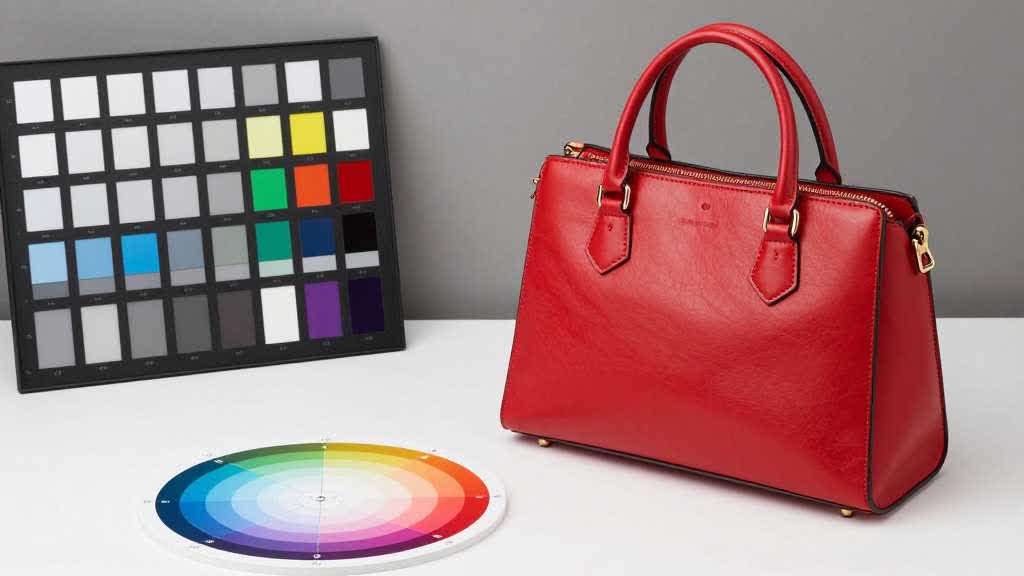
Color Correction for Ecommerce Product Images
Color correction for ecommerce images is not about making the photo look more dramatic. It is about making the product look accurate enough for buyers to trust. If a beige sweater turns gray, a skincare bottle shifts from white to blue, or a wooden product looks more orange than it is, the image can create wrong expectations before the order is placed.
For sellers, color correction should happen before background generation, retouching, ad cropping, and product detail page layout. A wrong color file can spread through the catalog quickly if it becomes the source for every later image.
Quick Answer
To correct product image color for ecommerce, start from the best source photo, fix white balance, compare the image against the real SKU, check material and packaging color, export for the intended channel, and review the final image on mobile. Color correction for ecommerce images can use AI or manual editing to remove color cast and improve consistency, but it should not make the product look like a different shade, finish, or material.
Color correction is especially important for apparel, beauty, home goods, jewelry, food packaging, supplements, furniture, and any product where buyers rely on visual color before purchase.
Diagnose the Color Problem First
Product photo color usually fails for a practical reason. The lighting may be too warm. A white backdrop may reflect blue. A phone camera may overcorrect the scene. The product may be photographed beside a colored wall or table. A supplier image may already be compressed and edited. An AI background replacement may change the shadow and make the product look cooler or warmer.
Start by identifying the color error before adding contrast or saturation:
| Color issue | What it looks like | First fix |
|---|---|---|
| Warm cast | Whites look yellow, cream, or orange | Correct white balance |
| Cool cast | Whites look blue or gray | Warm the neutral tones carefully |
| Oversaturation | Product looks brighter than real life | Reduce saturation and compare to SKU |
| Washed-out color | Product looks flat or faded | Adjust exposure and contrast before saturation |
| Background reflection | Product edge picks up wall or surface color | Mask or neutralize local color |
| AI scene drift | Product looks different after background generation | Compare with source image and restore product tones |
| Export shift | Color changes after upload or compression | Re-export from the master file and test final display |
This diagnosis matters because color correction can easily become color invention. The goal is to remove distortion, not create a more attractive version of the product.
Start With White Balance
White balance is the first correction because it affects every color in the image. If the photo is too warm or too cool, the product color will be wrong even if the product shape and lighting look good.
A practical ecommerce workflow starts by finding a neutral reference. That could be a gray card in the source shoot, a known white label, a white box, or a neutral area that should not have color tint. If the product packaging is white, use caution: glossy packaging can reflect nearby color and may not be a perfect reference.
After correcting white balance, compare the product against the real SKU or a trusted reference photo. The editing screen alone can hide errors. A product can look balanced in isolation and still be wrong when compared with the item that ships.
Preserve Material and Finish
Color accuracy goes beyond hue. Material and finish change how buyers read the image. A matte bottle, glossy plastic cap, brushed metal surface, soft cotton fabric, and transparent container all handle light differently.
Over-editing can damage those cues. Too much contrast can make fabric look harsher. Heavy saturation can make packaging feel cheaper. Aggressive shadow removal can make metal look flat. AI cleanup can smooth texture that buyers need to inspect.
For ecommerce, preserve the product detail that helps buyers judge quality. If a correction makes the product cleaner but erases the material, step back to the previous version.
Review by Product Category
Different categories need different color discipline.
Apparel needs fabric color, texture, and shade consistency across variants. Beauty and skincare need packaging color, label contrast, and shade accuracy. Home goods need material tone and room-context accuracy. Food and supplements need packaging color that avoids unapproved flavor, ingredient, or benefit claims. Jewelry and accessories need metal tone and stone color to stay believable.
The review question changes by category, but the principle stays the same: the image should make the product easier to trust, not easier to oversell.
Correct Color Before Generating New Scenes
If the source image has a color problem, AI scene generation can spread that problem into every new background. A product with a warm cast may look wrong in a bathroom scene, kitchen scene, desk scene, and ad crop. A product with a cool cast may look more premium in a studio scene, but the buyer may receive an item that feels different.
Correct the source file first. Then create the white-background image, neutral studio image, lifestyle scene, or PDP module asset. This order gives every downstream visual a better starting point.
If the source image is also low resolution, fix that before color work when possible. The guide on How to Fix Pixelated Product Photos explains when enhancement can help and when a reshoot is safer.
Use AI Carefully
AI product photo retouching can help remove color cast, balance lighting, clean backgrounds, and improve consistency across a catalog. It is useful when the original image has enough real product information and the edit is checked against the SKU.
The risk is overcorrection. An AI tool may make the product look more polished by changing color, softening texture, or creating a cleaner finish than the real item has. That can create returns, complaints, or distrust if buyers feel the product photo was too flattering.
For more on cleanup and editing decisions, read AI Product Photo Retouching Tools for Ecommerce and Product Image Generator vs Photo Editor.
Export and Display Checks
Color correction for ecommerce images is not finished inside the editor. The final image still needs to survive upload, compression, theme display, marketplace requirements, and mobile viewing.
Use this checklist before publishing:
- compare final image with the real SKU
- check whites, grays, labels, shadows, and product edges
- review color on mobile and desktop
- test the image at product-grid size and PDP size
- keep variant colors consistent across the product set
- avoid using an ad-enhanced version as the factual product reference
- save a master file before creating channel-specific exports
If the product is sold in color variants, review the full set together. One corrected image can look accurate alone but inconsistent beside other variants.
Correct Source Color Before Generation in LoomaDesign
LoomaDesign's product visual workflow helps sellers improve weak product assets before turning them into listing images, scenes, or PDP modules. Color correction belongs early in that workflow because it protects every later asset.
Use the AI Product Image Enhancer when the file needs clarity, retouching when the product needs cleanup, and generation when the team needs new scenes or channel-specific visuals. Correct the source image before asking AI to create more versions; otherwise one color mistake can spread into every listing image, A+ module, and ad crop.
FAQ
What is color correction in product photography? Color correction adjusts white balance, exposure, tint, saturation, and related settings so the product color looks accurate compared with the real item.
Why do product photos look different after upload? Common causes include compression, theme display, browser rendering, file export settings, lighting differences, and edits made from a weak source image.
Can AI fix product image color? AI can help correct color cast and improve consistency, but the output should be compared against the real SKU. AI should not change product shade, material, finish, or packaging truth.
Should color correction happen before background removal? Usually yes. Correct the source image first so background removal, white background images, lifestyle scenes, and PDP assets all start from accurate product color.
How do I keep variant colors consistent? Use the same lighting, correction workflow, export settings, and review process across the variant set. Compare variants side by side before publishing.
Sources and Data Points
- Amazon Ads, How to improve your product detail page for advertising
- Google Merchant Center Help, Image link attribute