
AI Product Image Generator for Product Bundles: Keep Included Parts, Scale, and Packaging Accurate
An AI product image generator can make bundle images look polished, but bundles are risky because the image has to answer a simple commercial question. What exactly is included?
That question matters for kits, sets, multipacks, gift boxes, starter packs, travel organizers, skincare routines, kitchen accessories, electronics accessories, pet care kits, and replacement-part packs. A single generated scene can accidentally add a brush, cable, pouch, bottle, stand, box, or background prop that looks like part of the offer.
For a bundle, product accuracy goes beyond shape or color. It also covers count, arrangement, scale, packaging, and whether a shopper can separate included items from decoration.
Quick Answer
Use an AI product image generator for product bundles only after you define the included parts list. Create images for the main bundle, separated parts, packaging, scale, detail proof, and use context. Review every generated image against the offer before publishing.
The lowest-risk bundle workflow starts with a product manifest: item count, variant names, package contents, dimensions, materials, colors, and excluded items. The image set should make that manifest visible.
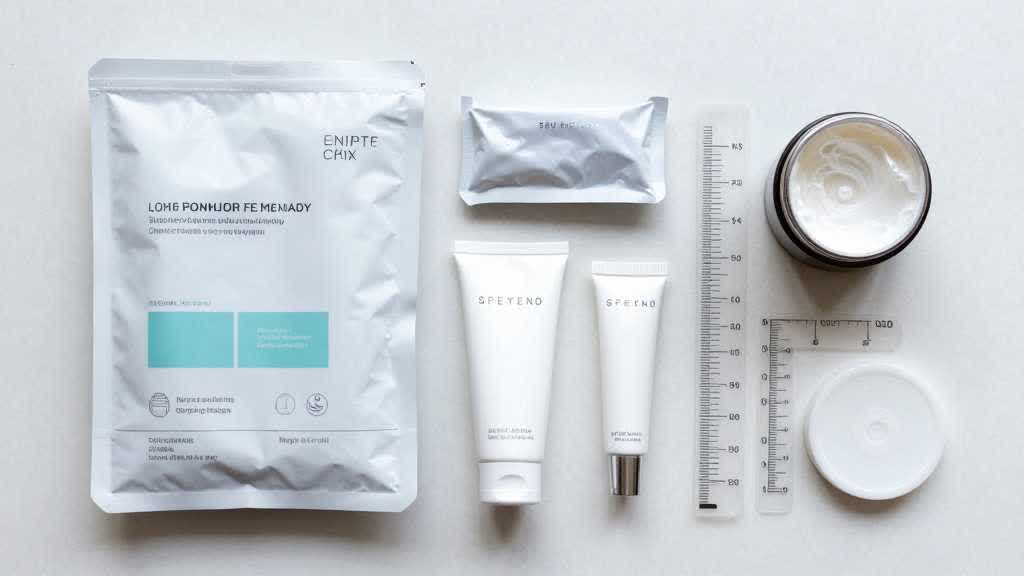
Why Bundles Are Different From Single Products
A single bottle image can be checked against one object. A bundle image has more places to drift. The AI may duplicate one item, omit another, change package count, show the wrong color option, or add a prop that the buyer reads as included.
This happens because ecommerce bundle photos often look like lifestyle photos. A skincare routine may sit beside towels and a tray. A kitchen kit may include bowls and utensils in the scene. A travel organizer may be shown with clothes, cables, passport holders, and toiletries. Those props help context, but they also create ambiguity.
The stronger approach is to divide the bundle image set by buyer question.
| Buyer question | Image to create | Review focus |
|---|---|---|
| What do I get? | main bundle image | exact item count and package count |
| What is inside? | separated included parts layout | each component visible |
| How big is it? | scale reference | realistic size comparison |
| How does it work together? | use context or routine scene | no false included props |
| Is the quality visible? | detail closeups | texture, hardware, label, finish |
| Which option should I choose? | variant or set comparison | consistent color and count |
| Is the packaging included? | packaging layout | box, pouch, label, inserts |
This structure reduces confusion. It also gives the product page more conversion value than one attractive group photo.
Start With a Bundle Manifest
Before generating images, write the bundle manifest in plain language.
For example:
- one 12 oz stainless steel bottle
- one replacement lid
- two silicone straws
- one cleaning brush
- one cotton storage pouch
- one kraft packaging box
- color: matte sage green
- not included: fruit, ice tray, towel, glass cup
This manifest becomes the image brief and the QA checklist. If the output shows three straws, a second pouch, a ceramic cup, or a different lid style, the image fails.
For bundles, the manifest should include items that are not included. Many misleading images are not caused by wrong product edits. They are caused by props that look too close to the offer.
Build the Bundle Image Set
The first image should show the full bundle in one scan. Keep the layout organized. If the main image is for a marketplace listing, keep it conservative. If it is for a Shopify or DTC product page, the hero can carry more brand mood, but included items still need to be obvious.
The second image should separate the included parts. This is often the most important image for bundles. Lay every included item out cleanly, keep count visible, and avoid overlapping small parts.
The third image should show packaging. Shoppers need to know whether the box, pouch, insert, or gift packaging is included. If packaging is decorative and excluded from the offer, keep it from dominating the image set.
The fourth image should show scale. Bundles often look larger in group photos. Add a hand, countertop, shelf, travel bag, bathroom counter, drawer, or model reference where it fits the category.
The fifth image should show use context. AI scene generation can help here, but the review should be strict. A routine scene should show how the bundle fits into use without implying extra items are part of the purchase.
The sixth image should show detail proof. For kits and bundles, detail proof may include zipper quality, bottle label clarity, brush bristles, cable connector shape, lid seal, fabric texture, clasp quality, or packaging finish.
Bundle Categories Need Different QA
The image workflow changes by bundle type.
| Bundle type | Common image failure | Better visual proof |
|---|---|---|
| Skincare routine | extra bottles, wrong shade, fake texture swatch | lineup, texture closeup, routine order |
| Kitchen kit | added bowls, tools, food props | included parts layout and cleaning image |
| Electronics kit | wrong cable, wrong connector, missing adapter | port closeup and parts grid |
| Travel organizer set | exaggerated storage capacity | scale image with real items |
| Jewelry gift set | fake box, wrong metal tone, changed clasp | clasp closeup and packaging proof |
| Pet care kit | added toy or treat not included | separated parts and size reference |
| Replacement-part pack | wrong quantity or shape | count layout and compatibility detail |
A product bundle image becomes useful when it reduces returns and support questions by making the offer visible.
Prompt Format for Bundle Images
Use one prompt per image job. Avoid asking one prompt to create the entire bundle page.
Main bundle prompt:
> Create a clean ecommerce main image for this product bundle. Keep the exact included items, item count, colors, material, label placement, packaging, and proportions from the reference. Arrange the bundle so each included part is visible. Use clean lighting and a neutral background. Keep out extra accessories, props, text overlays, badges, hands, or decorative items that could be mistaken as included.
Separated parts prompt:
> Create an included-parts layout for this bundle. Show each included item separately with accurate count, size relationship, color, and shape. Keep spacing clear and avoid overlapping small parts. Use a clean product catalog style on a neutral background.
Lifestyle prompt:
> Create a product page lifestyle scene that shows the bundle in realistic use. Keep the exact included items unchanged. Any surrounding objects should read as contextual props, not included parts. Keep the product bundle large enough to inspect on mobile.
The language should be specific because bundle errors often come from ambiguity.
Mobile Review Matters More for Bundles
Bundle images often fail on mobile because the details become too small. A large desktop image may show all six included parts, while the mobile gallery makes the brush, adapter, cap, or second pouch nearly invisible.
Before publishing, check the image set on a phone-size preview. The main image should communicate the bundle at a glance. The included-parts image should still make count readable. Detail closeups should show the parts that would otherwise be missed.
When the bundle only makes sense on desktop, the image set still needs mobile work.
LoomaDesign Workflow for Bundle Image Sets
LoomaDesign helps sellers produce a controlled product image set from the bundle manifest. The work should begin with the included-parts list, then move through one image job at a time: main bundle, separated parts, packaging, scale, detail proof, and use context.
That sequence matters because bundle mistakes are expensive. If the generated image adds a pouch, cable, spoon, brush, cap, insert, box, or second product outside the shipped offer, the image can create support tickets, returns, and review complaints. A controlled workflow makes the included-parts list visible before the seller creates lifestyle scenes.
The product detail page image workflow can help create the main bundle image, included-parts layout, packaging image, detail closeups, scale proof, and mobile-ready PDP visuals.
For Amazon sellers, the additional product image workflow can support secondary gallery images that explain parts, use, scale, and product quality. For stores that already have weak bundle photos, the AI image enhancer can help prepare sharper source material before generation.
If the bundle needs a clean first product image, the related guide on turning supplier photos into Amazon main images is the safer starting point. If the bundle needs background variations, the AI product background generator workflow explains how to choose scenes by page job.
Bundle QA Checklist
Use this checklist before publishing AI-generated bundle images:
- Item count matches the offer.
- Every included part is visible somewhere in the image set.
- No prop looks like an included accessory.
- Packaging is shown only if included.
- Product color is consistent across the set.
- Scale keeps the bundle realistic.
- Small parts remain readable on mobile.
- Detail images prove the parts buyers care about.
- Variant or set comparisons use the same crop and lighting.
- Any lifestyle scene still keeps the product easy to inspect.
- File names and alt text describe the actual bundle image.
- The final gallery answers what is included before the buyer reads the description.
For bundles, the image set should leave less room for interpretation.
FAQ
Can AI create product bundle images?
Yes, if the workflow starts from accurate product references and an included-parts list. The final images should be checked against the real offer before publishing.
Which image helps product bundles most?
The answer depends on the slot. The main image should show the complete offer in one scan. A separate included-parts image is often needed to make count, packaging, and components easier to understand.
Can AI add props to bundle images?
It can, but props are risky for bundles. Any prop that looks like an included item can mislead shoppers. Keep lifestyle props visually secondary and clarify included parts in a separate image.
How many images should a bundle product page have?
Most bundles need at least six images: main bundle, included parts, packaging, scale, detail proof, and use context. More complex kits may need comparison or compatibility images.
What should I check before publishing AI bundle images?
Check count, included parts, packaging, color, scale, material, small-part visibility, and whether any generated object looks like part of the offer.
Sources and Data Points
- Amazon Ads, How to improve your products for advertising: Amazon Ads recommends multiple high-quality images that show different angles, details, use, and variations.
- Google Search Central, Image SEO best practices: Google's image guidance explains how image context, alt text, and quality help search systems understand product visuals.
- Shopify, Ecommerce Product Photography: A Guide for Better Product Images: Shopify covers product photography setup, product image planning, and visual presentation for ecommerce stores.
- Community research checked from ecommerce, Shopify, and Amazon seller discussions about AI product photography, product-image accuracy, bundle confusion, and product photos that add accessories outside the shipped offer.