
Why Amazon A+ Images Look Blurry After Upload
Amazon A+ images usually look blurry after upload for one of four reasons: the source photo is already weak, the design was exported more than once, Amazon scales the file inside its module, or the text becomes too small on the live mobile PDP. Changing PNG to JPG or enlarging the same file will not repair those causes.
Check the original, the module slot, the final export, and the live ASIN before rebuilding the design. That sequence shows whether the repair belongs in the source photo, the layout, or the upload file.
Quick Answer
Fix blurry Amazon A+ images in this order: inspect the original at 100%, replace screenshots or thumbnails, rebuild from the master file, match the dimensions shown for the selected module, simplify image text, export once, and inspect the live ASIN on desktop and mobile. Enhance only when real product detail remains. Find a better source or reshoot when labels, edges, or product geometry are missing.
This page is now focused on repair and troubleshooting. Use Amazon A+ Content Dimensions Category Mobile Checklist when the main question is module planning, safe crop area, or category-specific A+ layout.

Diagnose the Kind of Blur
Start by diagnosing the softness the shopper actually sees before debating PNG versus JPG. A weak product edge, fuzzy text overlay, compressed label, and scaled-down mobile banner need different fixes.
Use this diagnostic table before redesigning anything:
| What looks wrong | Likely cause | First check |
|---|---|---|
| product edge looks soft | source image was low-resolution or over-cropped | original photo at 100% zoom |
| label text looks smeared | compression or AI cleanup damaged detail | source label and edited output side by side |
| graphic text looks fuzzy | thin font, small type, low contrast | phone-width preview |
| whole banner looks dull | repeated exports or wrong source file | master design file and export history |
| preview looks fine but live PDP looks weak | live scaling, compression, or device rendering | actual ASIN on desktop and mobile |
If the product itself is soft, design changes cannot solve it. If only the text is unreadable, the image file may be technically sharp while the module still fails at phone size.
Seven Fixes in the Right Order
- Open the untouched source at 100% and verify the product edge, label, texture, and color.
- Replace screenshots, supplier thumbnails, chat downloads, and old marketplace exports with the largest original.
- Rebuild the module from the master design instead of resizing a previous banner.
- Confirm the current module dimensions in Seller Central before export.
- Remove thin type, long labels, and low-contrast copy that will collapse on a phone.
- Export once, then compare the export with the master before upload.
- Inspect the live ASIN on desktop and mobile, because preview quality is not the final buyer experience.
These checks narrow the repair quickly. If step one already reveals unreadable packaging or a damaged edge, skip layout experiments and replace the source. If the source and export are clean but the message fails on mobile, fix the module composition rather than sharpening the file.
Match the Selected Module Before Export
Amazon A+ modules do not share one universal image shape. Build the image for the slot selected in A+ Content Manager and use the dimensions displayed there. Uploading a much larger file does not guarantee a sharper module because the platform still has to fit that file into the published slot.
Keep a master design with editable text and product layers. Export a fresh file for each module instead of stretching a banner made for another aspect ratio. Amazon seller discussions continue to report blur when otherwise clean assets are resized for a different A+ slot, which makes the module hint a practical checkpoint rather than a generic resolution target.
Fix the Source Product Image First
The source product image is the part sellers underestimate. A+ modules often enlarge, crop, or reuse an image that was originally built for a listing thumbnail, supplier catalog, chat app preview, or old ad export. Those files may look acceptable in a design mockup and still fall apart on the PDP.
Open the source product photo at 100% before placing it into any A+ design. Check product edges, label readability, texture, color, and important shape detail. If those details are not clean in the source, run enhancement, retouching, or a reshoot before building the A+ module.
AI enhancement can help when the image still contains real detail. It is risky when the label, seam, material texture, or product edge is gone. In that case, the tool may create a sharper-looking image that no longer proves the actual SKU. The product image editing and cleanup workflow shows how to keep the original beside each edited output and stop a failed file from entering the next step.
Clean the Export Chain
Many blurry A+ assets have been saved too many times. A product photo gets downloaded from a supplier page, dropped into Canva, exported, compressed, re-uploaded to another tool, then placed inside a final banner. Each step can remove detail before Amazon ever processes the file.
Use a cleaner chain:
- keep the original product photo separate from edited versions
- place the largest clean source file into the design
- export from the master file, not from a screenshot or previous export
- avoid resizing the same file repeatedly
- compare the final export with the master design before upload
This is boring production discipline, but it prevents a lot of image quality loss.
Make Text Survive Mobile
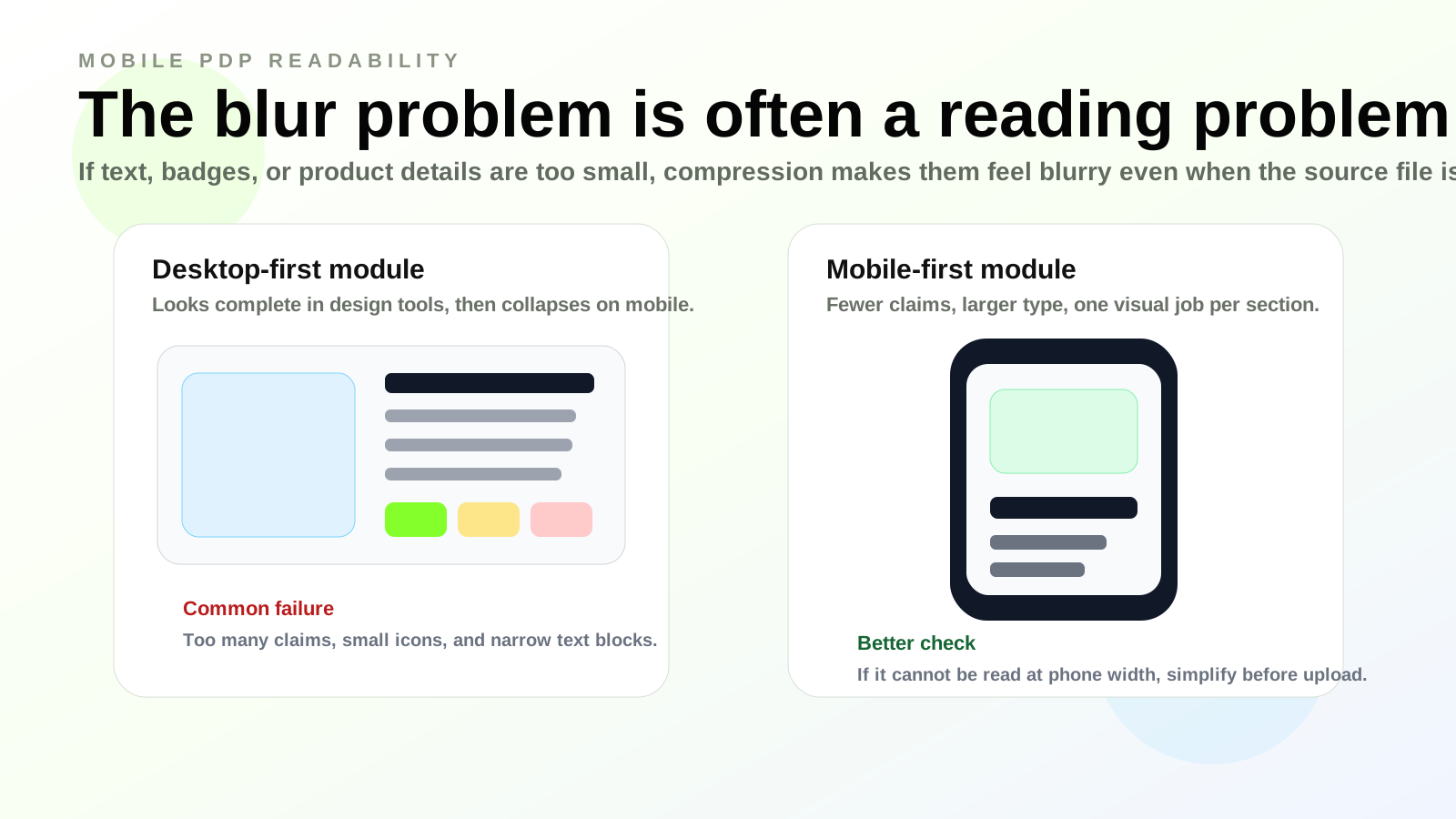
Some A+ images are not actually blurry. They are unreadable. Thin typography, small badges, long specification labels, pale gray copy, and text over busy photos can look fine in a desktop editor and collapse on a phone.
The fix is not more sharpening. Use fewer words, heavier type, stronger contrast, and more space around the message. If a module needs detailed specifications, use a cleaner comparison area or body copy so critical information is not hidden inside a small image.
Review the Live PDP, Not Only the Preview
Seller Central preview is useful, but it is not the final buyer experience. The live PDP may show different scaling, spacing, compression behavior, and device rendering. Review the published ASIN on desktop, mobile browser, and the Amazon app when relevant.
Use this live-page QA sequence:
- check the product edge and label at the live display size
- scan the module at normal phone width without zooming
- compare the live image against the source file
- test whether the main message is clear in three seconds
- note whether blur is in the product photo, text overlay, or whole exported banner
This separates real image repair from layout planning. If the issue is module choice or category sequence, move to the dimensions checklist. If the issue is source clarity or export damage, fix the image pipeline first.
Repair A+ Source Images in LoomaDesign
LoomaDesign fits the repair stage before A+ design. Use the AI Product Image Enhancer when the product photo is usable but soft, dull, compressed, or inconsistent. A cleaner source image gives every A+ module a better starting point.
After the source passes review, use Amazon A+ Content Dimensions Category Mobile Checklist for module planning and safe crops. Use Amazon A+ Content AI when the team needs the complete module structure.
FAQ
Why do Amazon A+ images look blurry after upload? Common causes include weak source photos, repeated compression, small text, thin typography, wrong export source, scaling inside the module, and skipped live PDP review.
Should I use PNG or JPG for Amazon A+ images? Use the format accepted by the upload interface and suited to the asset. The source image, layout clarity, and export chain usually matter more than changing format after the design is already weak.
Can AI fix blurry Amazon A+ images? AI can help when the source image still contains real product detail. It cannot safely fix a module with tiny text, wrong layout, or missing product information.
Why does the image look sharp on desktop but weak on mobile? The image may be sharp, but fine details can become unreadable after scaling. Mobile review should happen before and after upload.